
Twitter Human Verification: Why X Keeps Asking “Let’s Confirm You Are Human” and How to Fix It
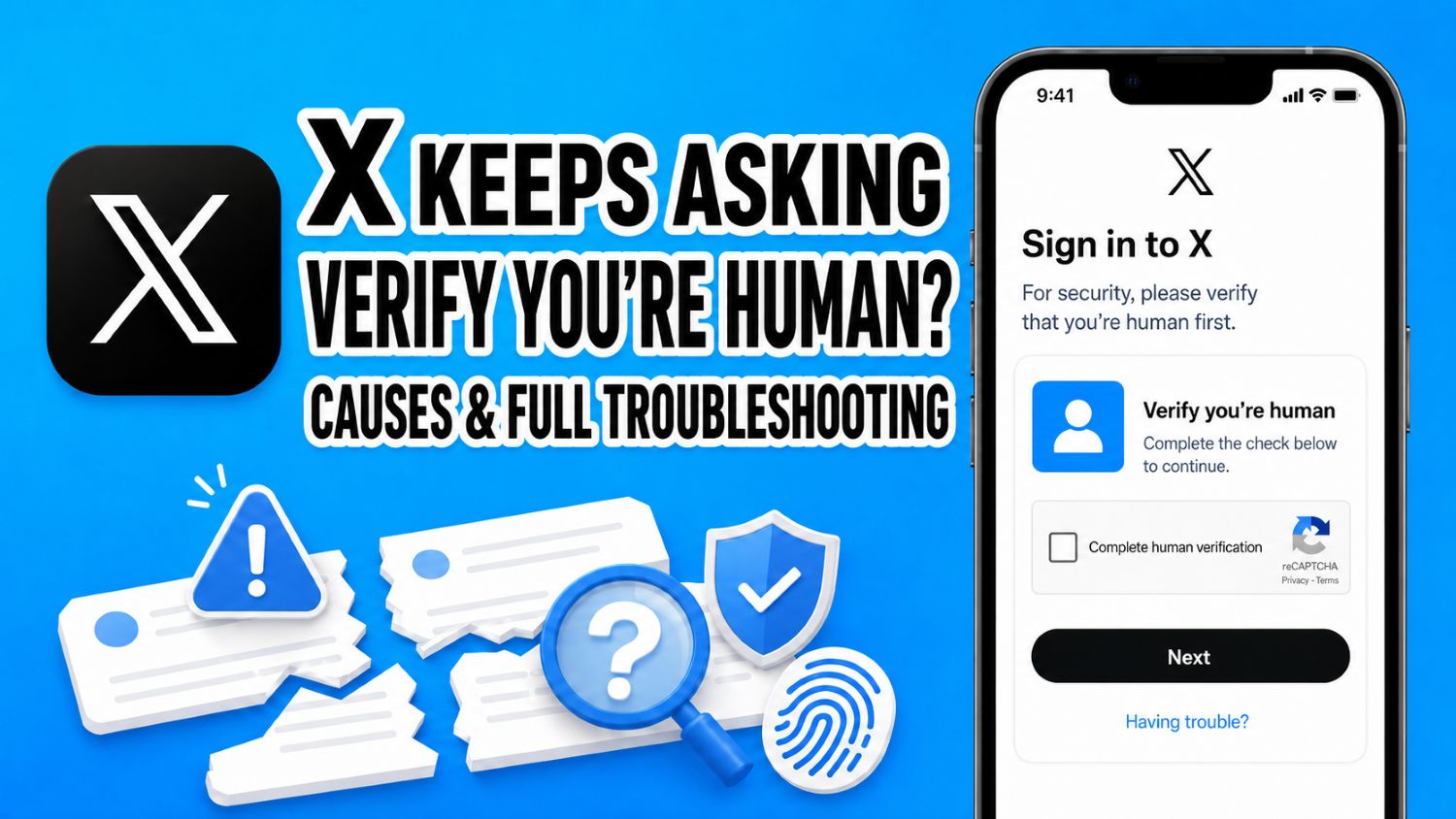
Quick Answer
If X keeps asking “Let’s confirm you are human,” do not rush to switch proxies or repeat the same login action.
Twitter human verification is usually triggered when X sees risk signals around your account, browser, IP address, device fingerprint or behavior pattern.
For individual users, the fix may be simple: clear cookies, disable suspicious extensions, verify by email or phone, and wait before trying again.
For teams, the issue is usually deeper. Multiple people may be sharing accounts, switching regions, using unstable proxies, or logging in from inconsistent browser environments.
The goal is not to bypass verification.
The goal is to make your access environment stable, clean and consistent enough that X can recognize normal user behavior.
What Does Twitter Human Verification Mean?
Twitter human verification is X’s way of checking whether an account action is being performed by a real user.
You may see messages like:
“Let’s confirm you are human.”
“Verify you are not a robot.”
“Something went wrong. Try again later.”
“We need to confirm you are the valid account owner.”
This can happen during login, search, posting, following, messaging or account recovery.
Official X Help documentation says locked accounts may need to be verified by phone, email or reCAPTCHA, depending on the message shown. X also states that suspicious automated behavior can lead to account locks.
So this is not always a simple browser bug.
It can be a security signal.
If you treat it as a network-only problem, you may make the account risk worse.
Why X Keeps Asking “Let’s Confirm You Are Human”
X does not usually explain every risk signal.
But in real account operations, the triggers are often predictable.
The most common causes include:
Unstable IP address.
Low-quality proxy.
Frequent region switching.
Multiple failed login attempts.
Cookie or session conflict.
Browser extension interference.
Device fingerprint mismatch.
Repeated automated actions.
New account behavior spike.
Too many accounts in one environment.
Suspicious follow, like or message patterns.
For one user, one signal may not be enough to trigger verification.
For a team, these signals often stack.
One operator logs in from the United States. Another logs in from Singapore. A third person uses a browser proxy extension. Then automation tools start searching, following or sending messages.
From the platform side, this no longer looks like one stable human user.
It looks like a risky account environment.
First Step: Do Not Keep Refreshing
When verification appears, many users panic.
They refresh the page.
They switch proxies.
They try another browser.
They log out and log back in.
They repeat the verification challenge again and again.
This is usually the wrong move.
Repeated failed attempts can make the account look more suspicious.
If X has temporarily limited the account or login route, forcing more attempts may extend the issue.
Start with a calm diagnosis.
Ask these questions:
Does this happen on one account or all accounts?
Does it happen on one browser or all browsers?
Does it happen only when using a proxy?
Does the X mobile app work normally?
Does the issue appear after login, search or posting?
Did the account recently change region or device?
These answers decide the next step.
Browser Layer: Cookies, Cache and Extensions
If the verification loop happens only in one browser, start here.
X relies on cookies, local storage, JavaScript and session tokens. If any of them conflict, verification may fail or keep repeating.
Try this sequence:
Disable ad blockers and privacy extensions.
Clear cookies for x.com and twitter.com.
Allow JavaScript and cookies.
Update the browser.
Try Chrome, Edge or Firefox.
Do not run multiple proxy extensions at the same time.
If private mode works, your normal browser profile is likely the problem.
If every browser fails, move to account and network checks.
Do not clear cookies every few minutes while testing.
For account platforms, constant cookie resets can look unnatural.
Account Layer: Security Checks Are Not Always Bad
Human verification does not always mean your account is banned.
Sometimes X is simply trying to confirm account ownership.
Official X Help says locked accounts may require phone, email or reCAPTCHA verification. It also provides separate guidance for accounts locked after too many login attempts.
So if you see a clear verification method, follow the official flow.
Check:
Email verification.
Phone number status.
Two-factor authentication.
Recent password reset notices.
Login alerts.
Connected apps.
Suspicious sessions.
Account limitation messages.
If the account was recently accessed from a new region, wait before trying again.
If the account may be compromised, change the password, secure the email address and revoke unknown app access.
Do not keep trying from random IPs.
That creates a worse login history.
Behavior Layer: X May Be Reacting to Actions, Not Login
Many teams only check the login environment.
But verification can also be triggered by behavior.
Common triggers include:
Too many follows in a short time.
Repeated likes or reposts.
High-volume search scraping.
Mass direct messages.
Rapid profile changes.
Repeated posting of similar content.
Multiple accounts acting in coordination.
X’s authenticity policy covers spam, platform manipulation and coordinated inauthentic activity.
This matters for teams.
If your account behavior looks automated, a cleaner IP alone will not solve the problem.
You need to reduce risk in both places:
Access environment.
Account behavior.
A stable environment cannot protect an account that behaves like a bot.
IP Layer: Why Proxy Quality Matters
This is where many X operators get stuck.
The page loads. The proxy works. But X still asks for human verification.
That is because “can open X” is not the same as “trusted enough for account operation.”
A poor IP environment can create risk signals such as:
Data center ASN.
Shared proxy abuse history.
Frequent IP rotation.
Region mismatch.
DNS leakage.
WebRTC leakage.
High-risk IP reputation.
Too many users on one node.
Multiple accounts using the same IP.
If your account is based around a U.S. audience but keeps logging in from different countries, X may see that as abnormal.
If the IP is residential but heavily abused, it may still trigger verification.
So do not only ask whether a proxy is fast.
Ask whether it is stable, clean and suitable for account activity.
For teams dealing with Twitter IP environment issues, consistency matters more than random rotation.
Static or Dynamic IP for X Accounts?
For account login and long-term account management, stability usually wins.
A static residential-style environment is better for:
Official brand accounts.
Customer support accounts.
Ad account management.
Long-term X posting.
Creator account operation.
Community management.
Sensitive login sessions.
For public monitoring and research, dynamic residential access may be more useful.
It fits:
Search result checks.
Trend monitoring.
Public profile viewing.
Ad display verification.
Regional content research.
Market observation.
Do not mix these two workflows.
Account login needs continuity.
Research and monitoring need controlled flexibility.
When teams use one unstable proxy setup for both, verification problems become more common.
Device Fingerprint Layer: IP Is Only One Signal
A clean IP is not enough if the browser environment contradicts it.
X can evaluate multiple signals around the session.
For example:
IP says United States.
Browser timezone says Asia.
System language says another region.
DNS resolves elsewhere.
WebRTC leaks another network.
Cookies are reset every login.
User-agent changes every session.
Screen size changes constantly.
This kind of mismatch can increase verification risk.
For account operations, your environment should look boring.
Same region.
Same browser.
Same timezone.
Same language pattern.
Same login habits.
Same account owner behavior.
The less contradiction, the better.
A Practical Troubleshooting Workflow
Use this order.
Do not skip straight to changing proxies.
Step 1: Identify the scope
Check whether the issue affects one account, one browser, one device or one network.
If only one account fails, focus on account security and behavior.
If all accounts fail on one network, focus on IP and routing.
If only one browser fails, focus on cookies and extensions.
Step 2: Pause repeated attempts
If verification keeps failing, stop for a while.
Too many failed attempts can create more risk signals.
Step 3: Clean the browser environment
Use one browser profile.
Disable unnecessary extensions.
Clear only relevant site data.
Do not keep resetting everything.
Step 4: Complete official verification
If X asks for email, phone or reCAPTCHA verification, follow the official flow.
Do not use third-party bypass tools.
Step 5: Check IP and region consistency
Make sure IP location, timezone, language and DNS do not conflict.
If using a proxy, avoid unstable shared nodes.
Step 6: Review account behavior
Reduce high-frequency actions.
Pause mass following, messaging, liking or repeated searching.
Step 7: Build a stable long-term setup
If the account matters, stop treating access as temporary.
Build a consistent environment.
Where InstaIP Fits In
InstaIP is not a tool for bypassing X rules.
That is the wrong way to think about it.
Its value is helping legitimate teams build a cleaner and more consistent access environment.
For X account operations, InstaIP can support scenarios like:
Stable account login environments.
Regional X access testing.
Brand monitoring workflows.
Public search result checks.
Ad display verification.
Cross-border social media operations.
Reducing random proxy conflicts.
Separating account login from research tasks.
The key is not “change IP faster.”
The key is reducing contradictions between account history, IP location, browser fingerprint and team behavior.
That is how you reduce avoidable verification triggers.
What Not to Do
Do not use free proxy lists for important X accounts.
Do not switch countries repeatedly in one day.
Do not use the same browser profile for many accounts.
Do not keep solving verification from different IPs.
Do not share one login with a whole team.
Do not automate follows, likes or messages right after verification.
Do not assume the proxy is the only problem.
Most verification loops come from combined signals.
Fix the system, not one symptom.
Recommended Setup for Teams
For each important X account, prepare a stable operating profile.
Use one browser profile.
Use a consistent IP region.
Match timezone and language.
Keep cookies stable.
Use two-factor authentication.
Limit account access to approved users.
Separate posting accounts from monitoring tasks.
Keep a record of login environment changes.
Pause activity after verification events.
This sounds basic.
But most teams do not do it.
That is why they keep seeing the same verification problem.